How to fix when Lightspeed cannot find your Cayan Terminal
If the Cayan Terminal is powered on but Lightspeed cannot connect to it to process sales please use the following steps to fix it.
- Press 000 on the Cayan Terminal keypad, this should be up the admin login screen and ask you for the admin password.
- Enter 9416557 for the password and press the enter key.
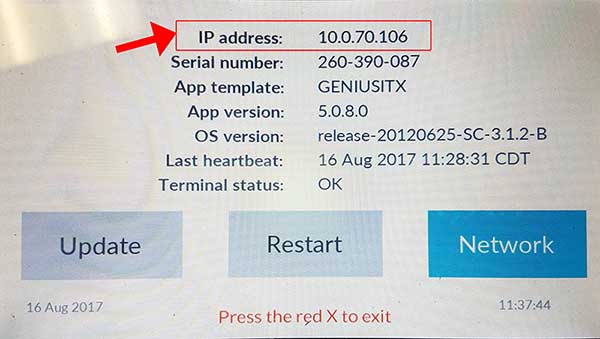
- Look at the top of the screen and write down the IP address of the terminal; see the image below for reference. Please note the image below is for reference only, your IP will be different. Make sure to use the IP on your Cayan Terminal.
- Click this Link to Pull Up the Payment Processing Settings.
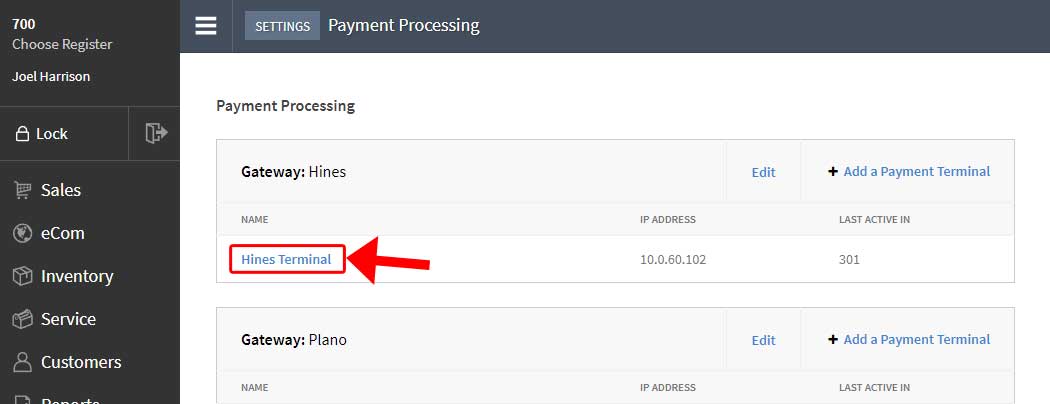
- Find your store and Terminal Name Link found under the Name column in your store's box.
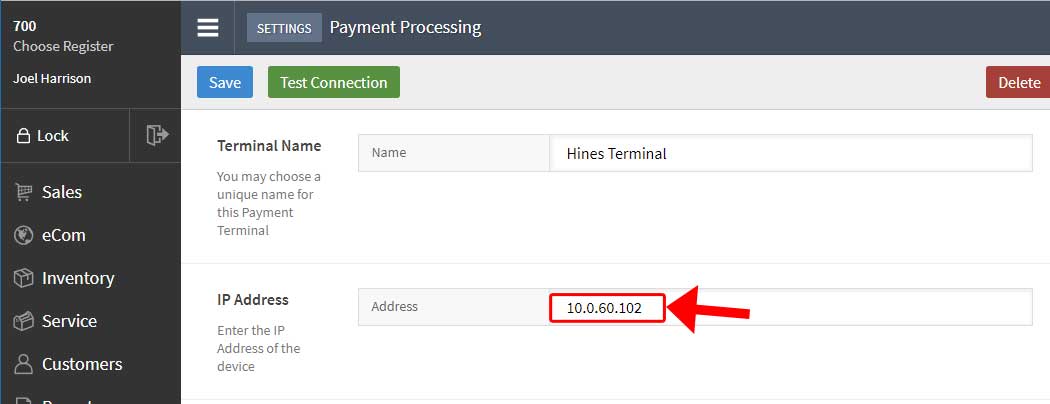
IMPORTANT NOTE: Do not click on any other links or change any other settings in the Payment Processing section inside Lightspeed as this can break all credit card functions. - Update the IP address in the address field with the new IP you recorded from the Cayan Terminal and click Save at the top.
Note: Make sure to include the "." between each number set. For example, "10.0.1.14" not "100114" - Finally enter the same Cayan Terminal IP you entered into Lightspeed in the form below, click the Generate Link button and then click the generated link at the top of the page.
- To test the connection, simply start a new sale and try to ring up any item and send the sale total to the Cayan Terminal.
- Your terminal should now display the sales total on the Cayan Screen, if so Congradulations you are DONE!!
Cancel the sale and ring up the next customer normally. - If your Cayan Terminal is still not responding to requests from Lightspeed:
- Make sure you wrote the IP address down correctly from Step 3.
- Make sure the IP address was copied and saved to Lightspeed properly in Step 6.
- Make sure the IP address was copied and that you clicked on the generated link in Step 7.
- If you enetered the IP correctly and followed all the steps properly and the Terminals is still not responding try restarting your terminal.
- To restart your terminal go back to Step 1 and 2 to get to the admin screen.
- Once on the admin screen press the restart button in the middle and wait for the Cayan Terminal to restart.
- When you see the Genius by Cayan logo try running a test transaction and sending it to the terminal.
- If you have done all of the above and the Cayan Terminal is still not responding to Lightspeed, please contact Lightspeed Support via their Chat Interface in the Help link on the lower left of the main menu or by calling them at (866) 932-1801. Let them know you are working with Joe East Enterprises and they will assist you further.
- Your terminal should now display the sales total on the Cayan Screen, if so Congradulations you are DONE!!